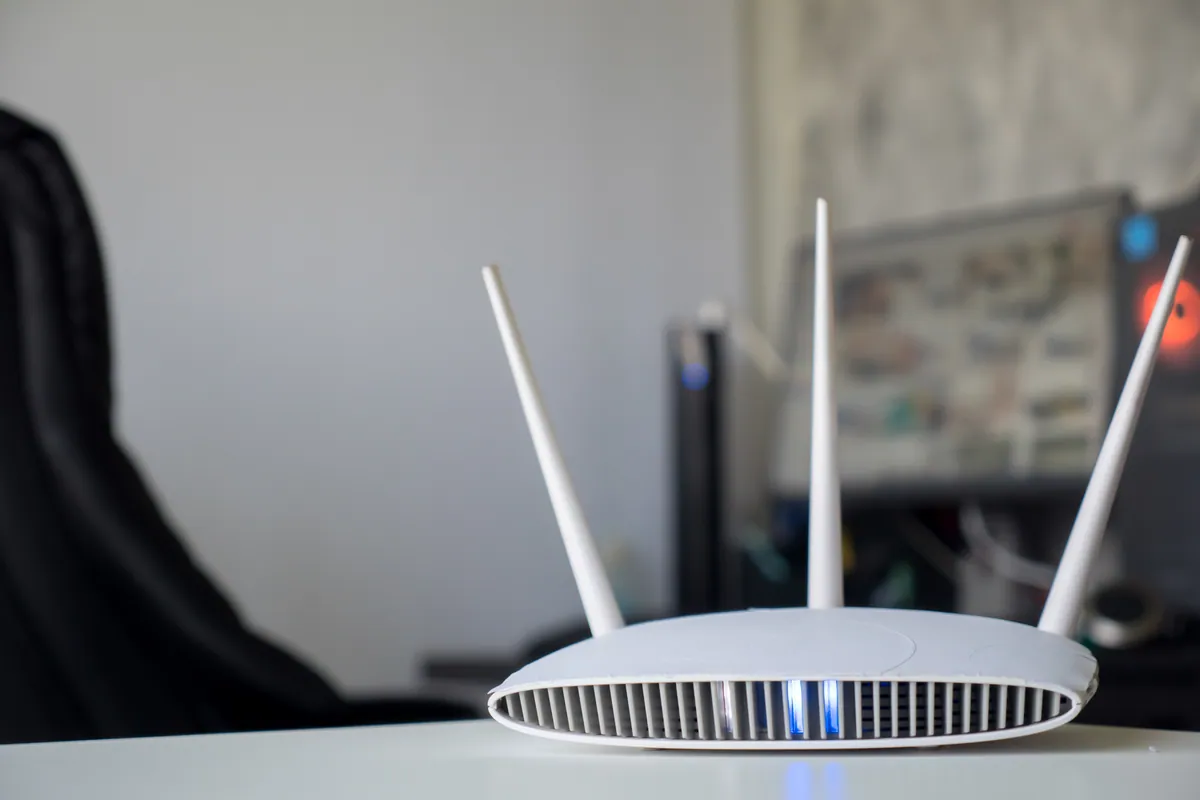
What “connected but no internet” actually means
When your laptop or phone says it is connected to Wi-Fi but no page loads, the signal between your device and the router is fine. The break is somewhere further along the chain: the router itself, the connection between your router and your provider, or a setting on the device that is quietly blocking traffic. The full signal bars are honest — they only ever measured the hop to the router, not whether the wider internet is reachable.
The good news is that this narrows things down. A common fault we see in the workshop is people replacing a perfectly good router when the actual issue was a provider outage or a stale network setting. Working through the chain in order saves you time and money.
Sound like your problem?
Bring it to our Putney workshop or message us a photo and we will give you a straight answer and a quote before any work starts.
Step one: is it one device or all of them?
This single check tells you more than anything else. Pick up your phone and try a website on both Wi-Fi and mobile data, then try a second device on the same Wi-Fi.
- Only one device fails, others are fine: the problem is that device, not the network. Skip ahead to the device section.
- Every device shows connected but no internet: the fault is the router or your provider. Move to the restart section.
- Nothing connects at all, not even the Wi-Fi: that is a different fault — usually the router itself.
Doing this first stops you rebooting the whole house when only one laptop needs attention.
Step two: restart everything in the right order
Order matters more than people expect. If you reboot the router and the device at the same time, the device often rejoins before the router has finished re-establishing its link to the provider, and you are back where you started.
- Turn off your device’s Wi-Fi (or the whole device).
- Power off the router and the separate modem if you have one. Unplug them at the wall.
- Wait a full two minutes. This lets the provider’s equipment register that your line has dropped and reset its session.
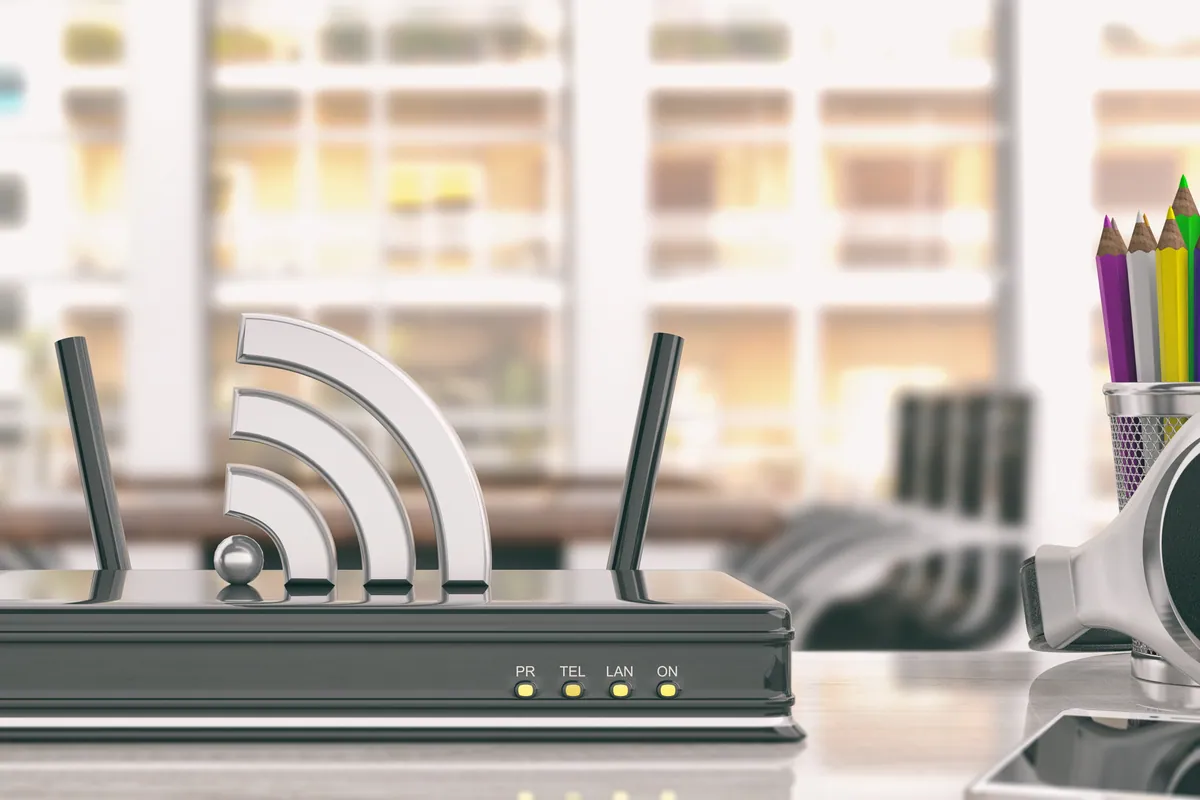
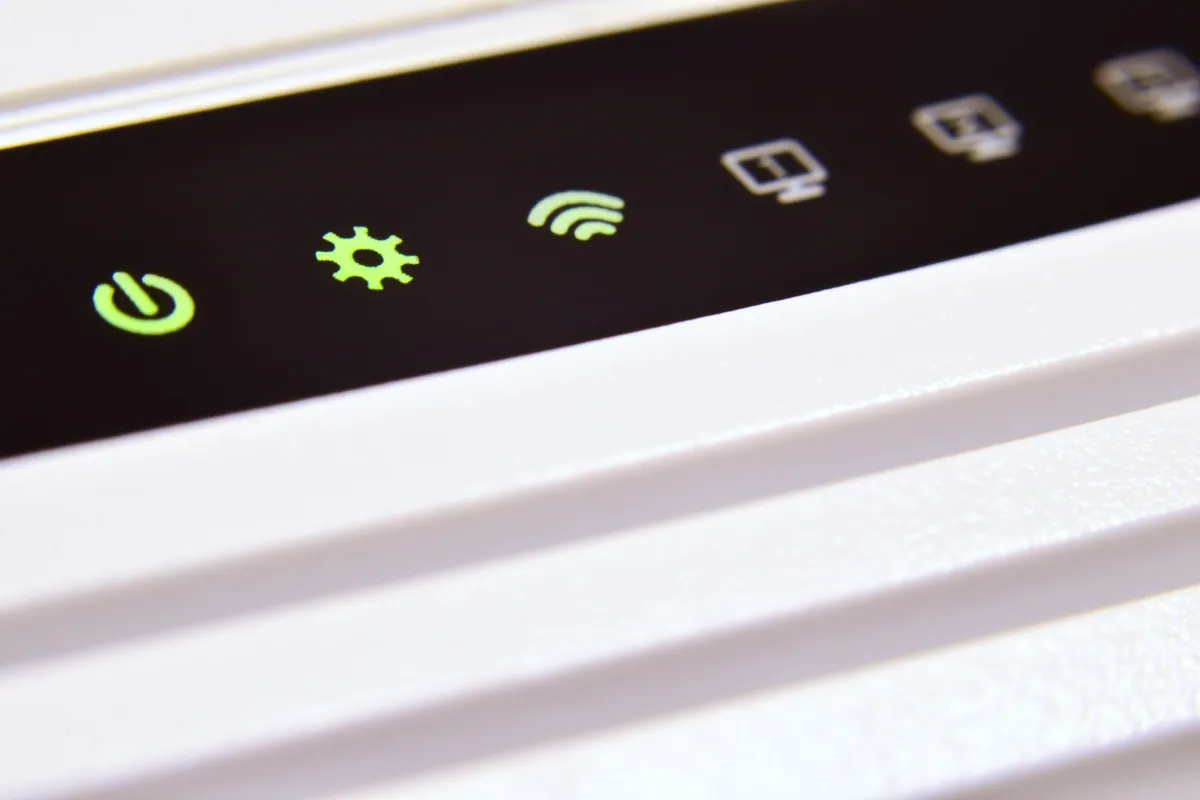
- Power the modem on first. Wait for its lights to settle — usually the internet or broadband light goes solid.
- Then power the router on and wait for it to settle.
- Last of all, turn your device’s Wi-Fi back on.
If the router’s internet light never goes solid — it stays red, flashing, or off — that points at the line coming into your home, which is your provider’s responsibility.
Step three: rule out a provider outage
Before you touch any settings, check whether your broadband provider has a fault. Most providers have a service-status page or app, and you can check on mobile data. A postcode-level outage explains a whole street losing connection at once and is nothing you can fix from inside the house.
If the provider confirms an outage, there is genuinely nothing to do but wait. Resist the urge to change router settings during an outage — you will only create new problems to untangle later.
Step four: fix DNS, the quiet culprit
If the router’s internet light is solid and there is no reported outage, but pages still will not load, DNS is a strong suspect. DNS is the system that turns a web address like a shop’s name into the numeric address your device actually connects to. When it fails, you get the classic symptom: apps that use direct connections keep working, but websites will not open, and you may see “server not found” errors.
A quick test: if a website loads by its numeric address but not its name, DNS is your problem. To fix it, set your device or router to use a reliable public DNS service instead of the default. On Windows this is under your adapter’s IPv4 properties; on a Mac it is under Network settings; on most routers it is in the internet or WAN section. Reliable free options include 1.1.1.1 and 8.8.8.8. After changing it, flush the DNS cache or simply reboot the device.
Step five: the device itself
If only one device is affected, the fix lives there:
- Forget and rejoin the network so it pulls a fresh address rather than clinging to a stale one.
- Renew the IP address — an “IP conflict” or a self-assigned address starting 169.254 means the device never got a proper address from the router.
- Check date and time. A clock that is badly wrong breaks the security certificates that secure sites rely on, so pages fail to load.
- Disable any VPN or proxy temporarily; a lapsed VPN licence or a misconfigured proxy will silently block traffic.
- Update the network driver on a Windows laptop, or check for pending system updates on a Mac.
When to call the provider vs an engineer
Call your provider when the router’s internet light will not go solid, when their status page shows a fault, or when the line drops repeatedly at the same times of day — these point at the connection into your home. Ask them to test the line and check your account.
It is worth calling an engineer when every device connects to Wi-Fi but nothing reaches the internet and the provider insists the line is fine, when DNS and address settings are beyond what you want to touch, or when a new router, mesh system or business network is not routing traffic correctly. These sit in the grey area between a home fix and a provider fault, and that is exactly where a proper Wi-Fi setup or wider network setup review pays off.
Get it sorted
If you have worked through these steps and your devices still show Wi-Fi connected but no internet, we can help. We offer remote IT support across the UK to diagnose most connection faults without a visit, alongside onsite work across South West London and our Putney workshop. Call 020 7610 0500, message us on WhatsApp, or use the contact form and we will help you find where the chain is breaking.